
- Login and click
 Self Service > Student Center.
 - Click on the Enrollment Shopping Cart link that appears in the lower right of the screen under the Academics header.
- Select the class you would like to enroll in by using one of the options under Add to Cart.
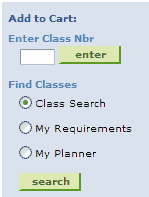
Note: You can add classes by directly entering the class number, by searching, by selecting from your degree requirements, or by adding them from your planner. See How do I add classes to my shopping cart? for more information. - Select your desired class by clicking the
 button. This will return you to the Shopping Cart page, and your selected class will appear in your Enrollment Shopping Cart.
Note: Be sure that your class status shows as a green circle ; or, if it is a closed class, that you have entered a valid permission number in the permission number text field. See How do I use a class permission number? for details on how to do this.
 - Once your Enrollment Shopping Cart contains the classes you want to add, check mark all your classes and click on the
 button. See the topic How do I validate classes in my shopping cart? for more details about validating your classes.
Click on the button to return to the shopping cart.
 - Check mark all the classes you want to enroll in and then click on the
 button.
 - The Confirm Classes screen appears. Verify that the classes are correct, then click the
 button.
 - The results screen appears. Each of your requested classes appears with either a green checkmark
 or a red ‘X’
  in the status column, along with a message explaining your enrollment confirmations or errors.
How do I register for my classes?
Permanent link to this article: https://blogs.butler.edu/mybutlerhelp/question/how-do-i-register-for-classes-online/